
PostgreSQL and SonarQube Installation and Integration in RHEL.

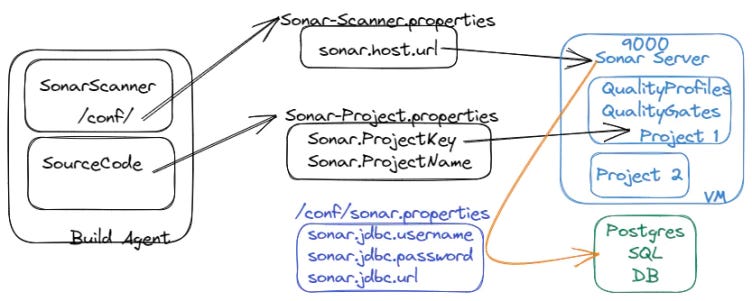
SonarQube/Cloud Installation, exploration and Integration (Azure DevOps) has been illustrated in three stories simultaneously.
This is Part 1 of 3.
Installing PostgreSQL on Red Hat Enterprise Linux (RHEL):
Add the PostgreSQL Yum repository to your system by creating a new file called “pgdg.repo” in the /etc/yum.repos.d/ directory:
sudo vi /etc/yum.repos.d/pgdg.repo
2. Add the following content to the “pgdg.repo” file:
[pgdg13] name=PostgreSQL 13 for RHEL/CentOS 7 - x86_64 baseurl=https://download.postgresql.org/pub/repos/yum/13/redhat/rhel-7-x86_64 enabled=gpgcheck=01Note: You can replace “13” with the version of PostgreSQL you want to install, if it’s different.
3. Update the package list and install PostgreSQL:
sudo yum update
sudo yum install postgresql-server
4. Initialize the PostgreSQL database:
sudo postgresql-setup initdb
5. Start the PostgreSQL service and enable it to start on boot:
sudo systemctl start postgresql
sudo systemctl enable postgresql
6. That’s it! PostgreSQL should now be installed and running on your RHEL system. You can log in to the PostgreSQL server by running the following command:
sudo -i -u postgres
psql
From here, you can start creating databases and tables.
Installing SonarQube and integrating it with PostgreSQL.
1.Install Java 11 if it is not already installed:
sudo yum install java-11-openjdk-devel
2.Download and install the latest version of SonarQube from the official website:
sudo wget https://binaries.sonarsource.com/Distribution/sonarqube/sonarqube-9.3.1.45539.zip
sudo unzip sonarqube-9.3.1.45539.zip -d /opt
3.Create a new PostgreSQL database and user:
sudo su - postgrescreate user sonar
psql
ALTER USER sonarqube WITH ENCRYPTED password 'password';
create database sonarqube;
GRANT ALL PRIVILEGES ON DATABASE sonarqube TO sonar;
\q
exitNote: Replace ‘password’ with a strong password of your choice.
4.Configure SonarQube to use PostgreSQL by editing the file /opt/sonarqube/conf/sonar.properties:
sonar.jdbc.username=sonasonar.jdbc.password=password
sonar.jdbc.url=jdbc:postgresql://localhost/sonarquberNote: Replace ‘password’ with the password you set in step 3.
5.Start SonarQube:
sudo /opt/sonarqube/bin/linux-x86–64/sonar.sh start
6.Open the SonarQube web interface by visiting http://<your_server_ip>:9000 in a web browser.
7.Log in with the default credentials (admin/admin) and follow the prompts to change the password.
That’s it! SonarQube should now be up and running and integrated with your PostgreSQL database.
You can now start analyzing your projects and improving your code quality.
Subscribe for more content like this.