Exploring SonarQube or SonarCloud.

SonarQube/Cloud Installation, exploration and Integration (Azure DevOps) has been illustrated in three stories simultaneously.
This is Part 2 of 3.
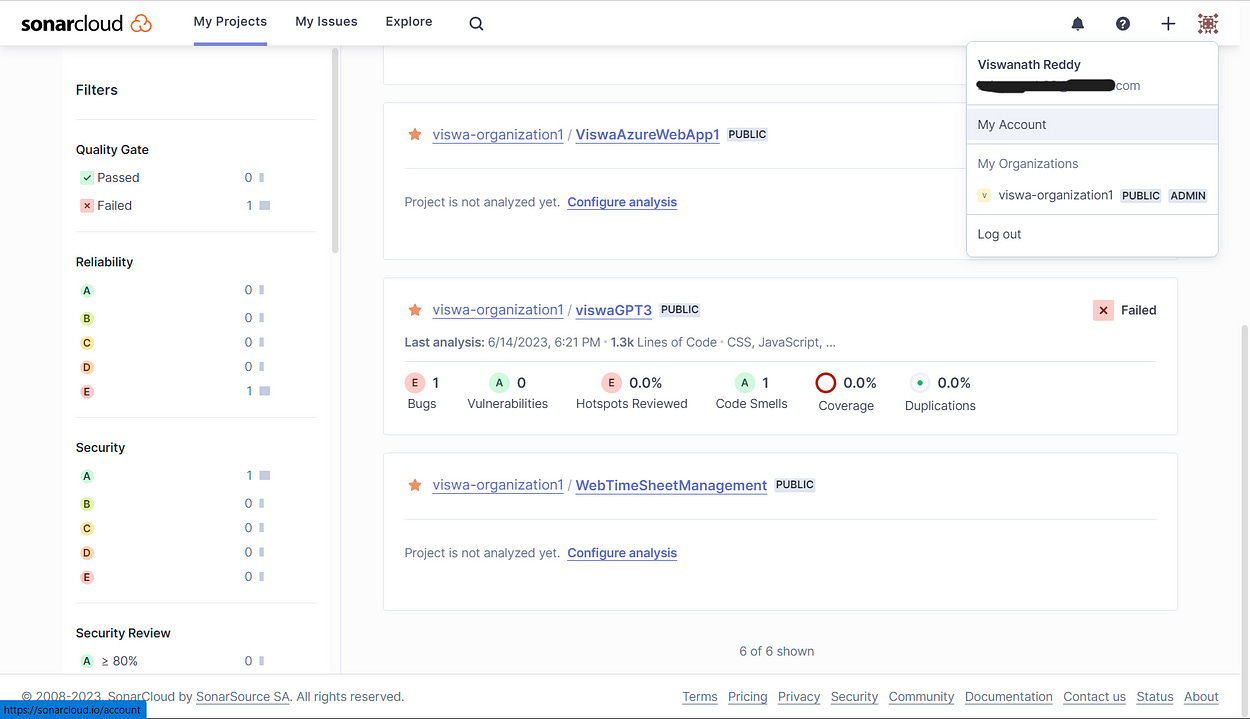
Important Account settings to observer:
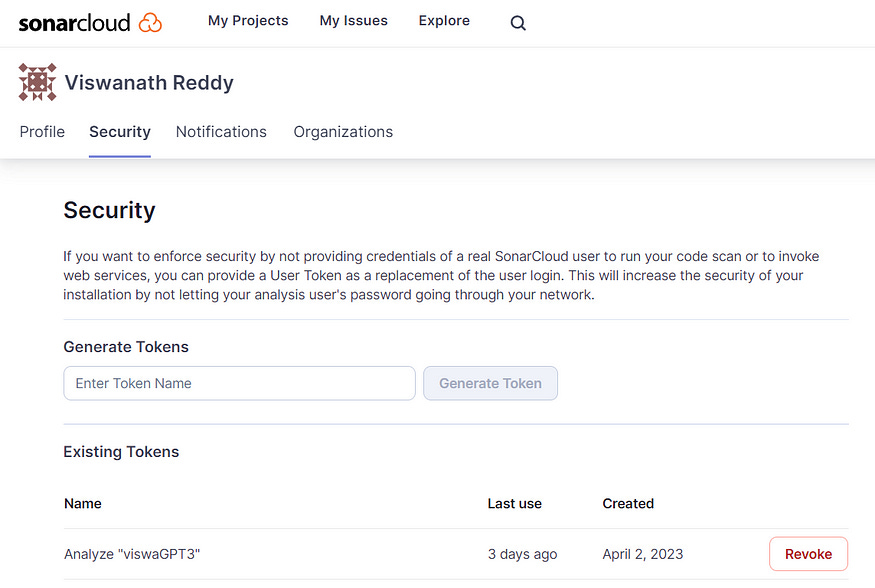
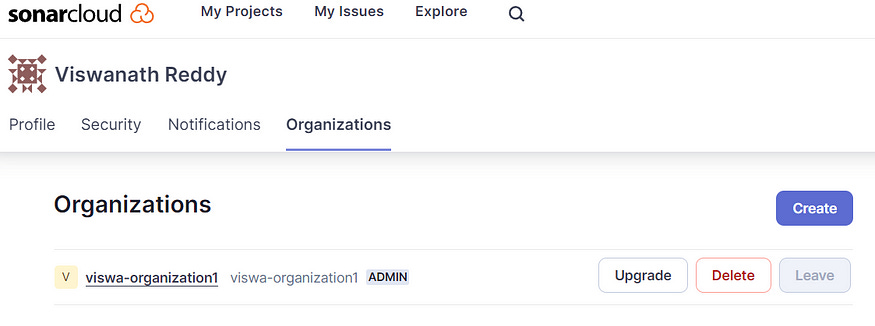
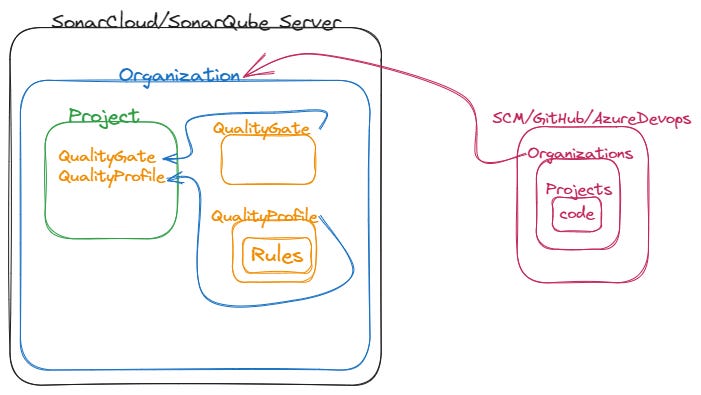
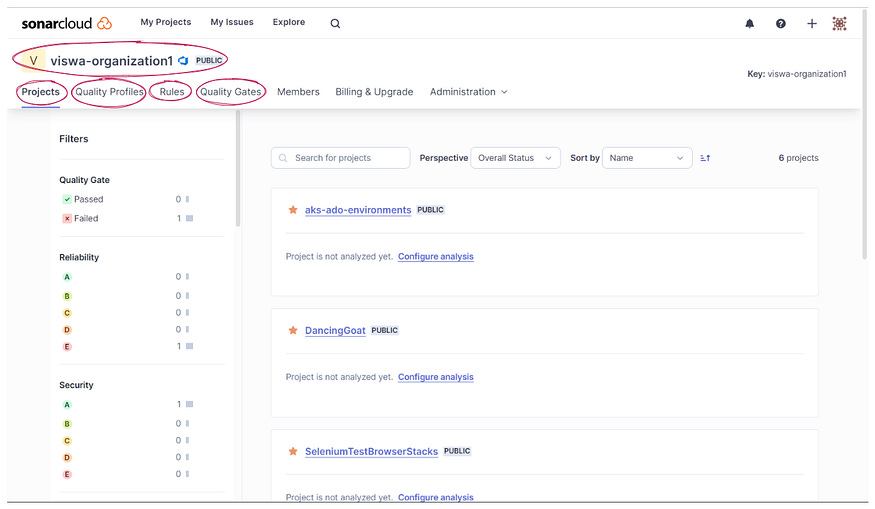
Here in Sonar we have 5 important things to be observed.
Organizations
Projects
Rules
Quality Profiles
Quality Gates
1. What is a SonarCloud organization?
Each SonarCloud organization represents a corresponding organization on the repository platform side. The two organizations are bound one-to-one.
In GitHub and Azure DevOps collections of projects are called organizations, in BitBucket Cloud, workspaces, and in GitLab, groups. For simplicity, we will refer to all of these generically as organizations.
An organization in SonarCloud is composed of:
The connection to the corresponding organization on the repository platform side.
The projects from that repository platform organization that have been imported.
The members of the organization. Each member has a set of permissions that govern which operations they may perform.
Organization-level configurations such as the new code definition default, the quality gate definition, and the quality profiles.
Whether the organization is free or paid and if it is paid, the payment information and tier of the paid plan.
Creating an organization
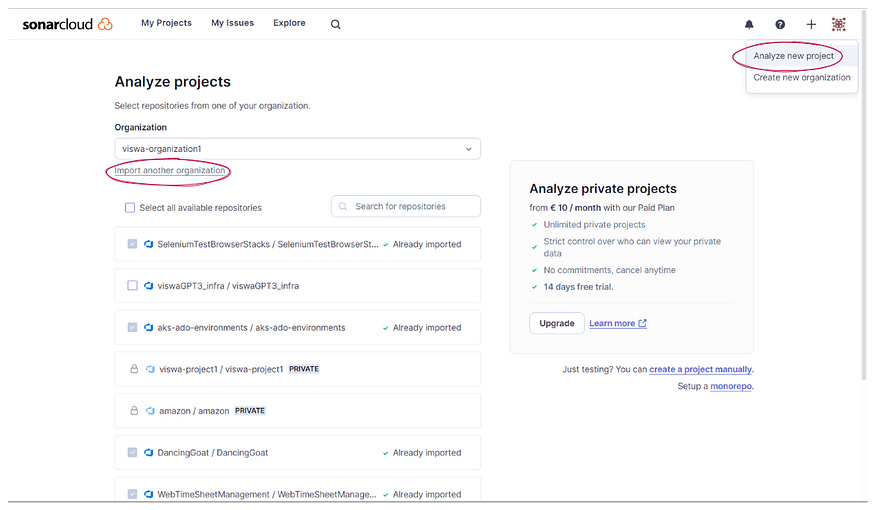
When you sign in to SonarCloud for the first time, it will prompt you to choose one of your existing organizations (or your personal account) on the repository service to import. On import, a corresponding organization is created on the SonarCloud side.
SonarCloud will then let you choose which repositories to import from your platform-side organization (or personal account) to the SonarCloud-side organization.
Later, you can create additional SonarCloud organizations by clicking + > Create New Organization (under the plus sign in the top bar) and specifying an organization on the repository platform side to import.
2. What is a SonarCloud Project?
In SonarCloud, a project is a unit of analysis. It can be a single application, a library, or a set of related applications. A project is defined by its source code, its programming language, and its quality profile.
The source code of a project is the code that is analyzed by SonarCloud. It can be in a variety of formats, including Java, C++, Python, and JavaScript.
The programming language of a project is the language that is used to write the source code. SonarCloud has plugins for many different programming languages.
The quality profile of a project is a set of rules and metrics that are used to assess the quality of the code. SonarCloud comes with a default quality profile, but you can customize it to meet the specific needs of your project.
Once a project is defined, you can start analyzing its code. SonarCloud will scan the code for potential problems, such as security vulnerabilities, coding errors, and style violations. It will also generate reports that show the results of the analysis.
3. Rules Overview
In SonarCloud, analyzers contribute rules executed on source code to generate issues. There are four types of rules:
Code smell (maintainability domain)
Bug (reliability domain)
Vulnerability (security domain)
Security hotspot (security domain)
For code smells and bugs, zero false-positives are expected. At least this is the target so that developers don’t have to wonder if a fix is required.
For vulnerabilities, the target is to have more than 80% of issues be true-positives.
Security hotspot rules draw attention to code that is security-sensitive. The hotspots identified by the rules must be reviewed and flagged as safe or a fix applied.
The Sonar Rules catalog is the entry point where you can discover all the existing rules.
Rules
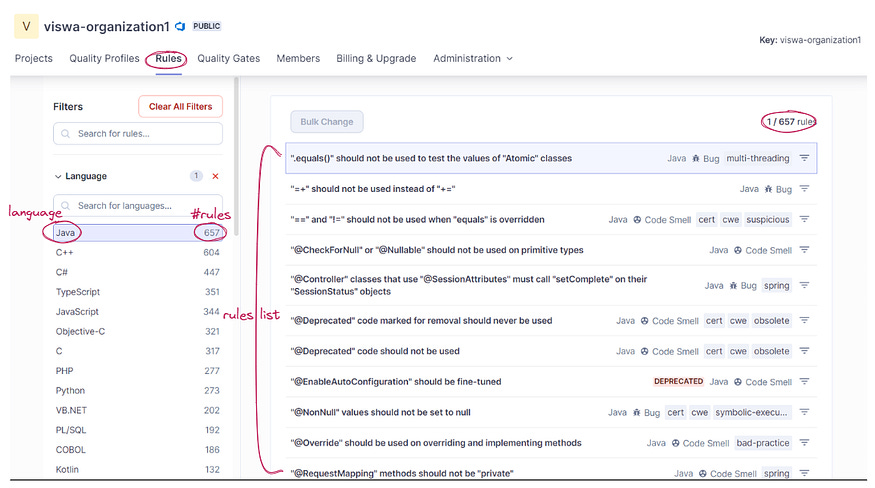
You can access the Rules top menu only from within your organization. By default, when entering the top menu item “Rules,” you will see all the available rules brought by the analyzers available on SonarCloud. You can narrow the selection based on search criteria in the left pane:
Language: the language to which a rule applies.
Type: bug, vulnerability, code smell, or security hotspot rules.
Tag: it is possible to add tags to rules in order to classify them and to help discover them more easily.
Repository: the engine/analyzer that contributes rules to SonarCloud.
Default severity: the original severity of the rule — as defined by the analyzer that contributes this rule.
Status: rules can have 3 different statuses:
Beta: The rule has been recently implemented and we haven’t gotten enough feedback from users yet, so there may be false positives or false negatives.
Deprecated: The rule should no longer be used because a similar, but more powerful and accurate rule exists.
Ready: The rule is ready to be used in production.
Security category: security rules are classified according to well-established security standards such as:
Available since: the date when a rule was first added on SonarCloud. This is useful to list all the new rules since the last upgrade of a plugin for instance.
Quality Profile: inclusion in or exclusion from a specific profile.
Inheritance: available when an inherited quality profile is selected. It can filter inherited rules, other rules, or inherited rules that have been overridden by other settings.
Activation severity: available when an inherited quality profile is selected. It can filter by severity using the value chosen when the rule was activated in the quality profile.
For more detailed information on the use of rules in Quality Profiles, see Quality Profiles.
4. Quality Profiles
Quality profiles are a key part of your SonarCloud configuration. They define the set of rules to be applied during code analysis.
Every project has a quality profile set for each supported language. When a project is analyzed, SonarCloud determines which languages are used and uses the active quality profile for each of those languages in that specific project.
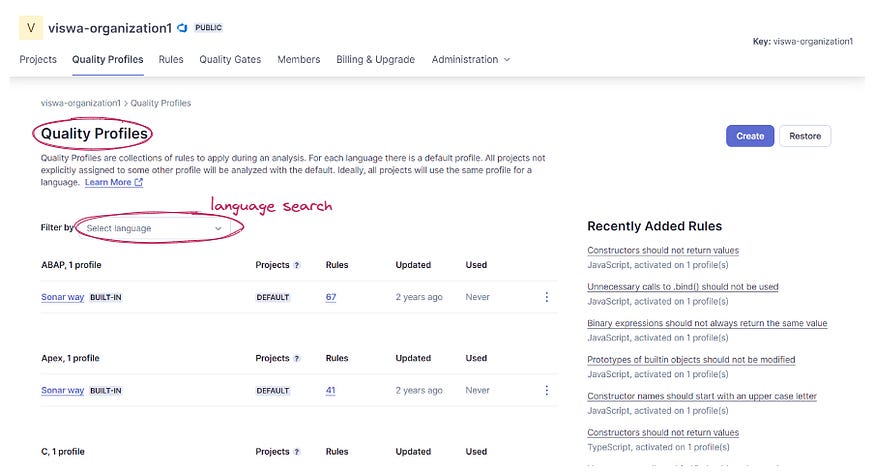
Go to organization name > Quality Profiles to see all the currently defined profiles grouped by language.
Built-in and default profiles
SonarCloud comes with a built-in quality profile defined for each supported language, called the Sonar way profile (it is marked with the BUILT-IN tag in the interface). The Sonar way profile activates a set of rules that should be applicable to most projects.
In a newly set up organization, the Sonar way profile is the default for every language (marked with the DEFAULT tag in the interface). The default profile is used for that language if no other profile is explicitly defined at the project level. The default profile for a given language can be changed.
Customizing a quality profile
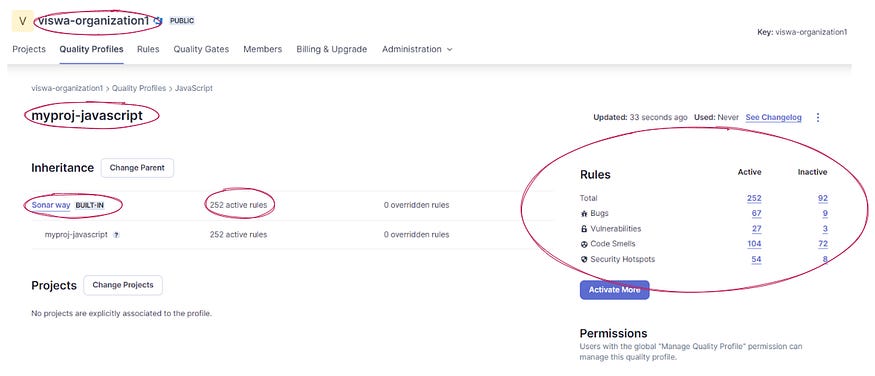
The Sonar way profile is designed to be broadly suitable for most projects, but it is intended only as a starting point. In most cases, you will want to adjust your profile as the project progresses.
If you have multiple projects, you might also need to have different profiles for each. You might run into the following situations:
You have different technical requirements from one project to another.
You want to ensure stronger requirements for some of your projects than for others.
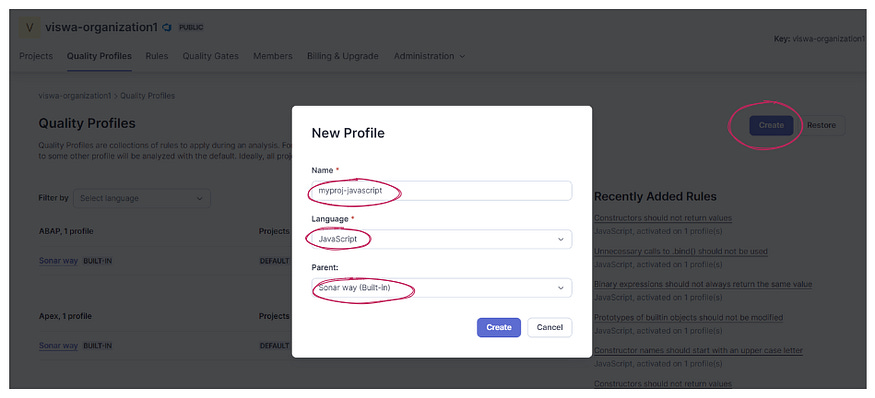
New profiles can be created in two ways:
Copying an existing profile and adjusting the copy.
Extending an existing profile.
Copying a quality profile
When you copy a profile, you clone all activated rules of the original. From here, you independently activate or deactivate rules to fit your needs; your new profile won’t inherit changes made to the original profile.
Follow these steps to copy a profile:
Go to the page of the profile you want to copy (organization name > Quality Profiles > profile name).
Select Copy from the dropdown menu in the upper-right corner of the page.
Give your new profile a name and select Copy.
Modify the copy as needed.
Applying profiles to projects
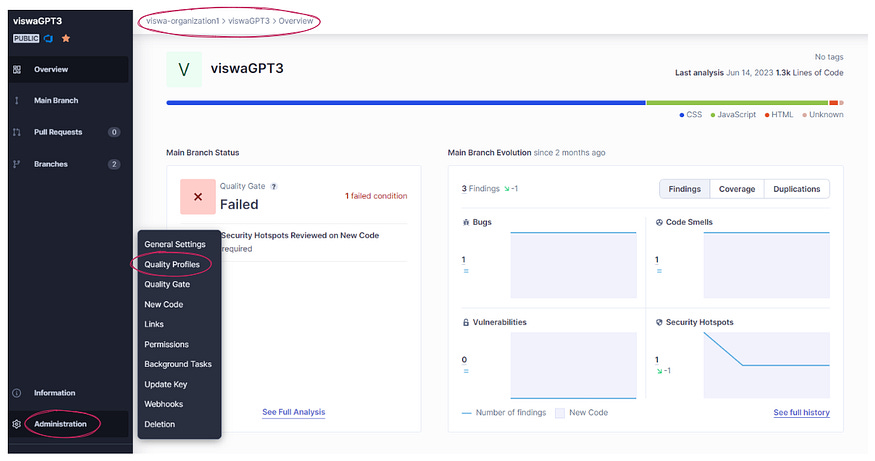
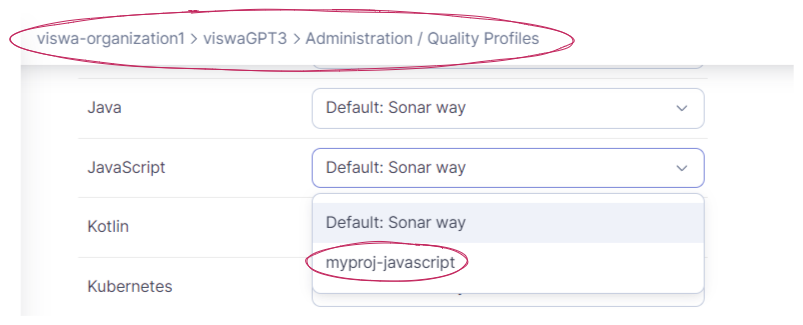
One profile for each language is marked as the default. Barring any other intervention, all projects that use that language will be analyzed with that profile. To have a project analyzed by a non-default profile instead, start from Quality Profiles, and navigate to your target profile, then use the Projects part of the interface to manage which projects are explicitly assigned to that profile.
5. Quality Gates
Quality gates are defined at the organization level and applied at the project level. Each project has one quality gate assigned from among those defined in the organization.
Defining new quality gates for your organization
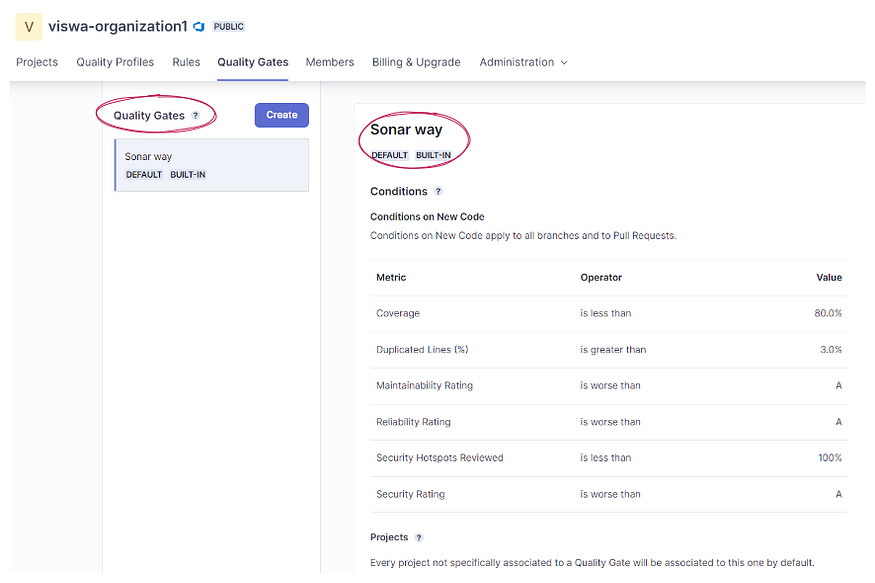
Every organization comes with the built-in Sonar way quality gate set as the default to be assigned to all new projects.
Though the Sonar way quality gate is suitable for most projects, there are cases where you may want to make adjustments. In those situations, you can create a new quality gate definition and either just make it available to projects in the organization or set it as the default for all new projects.
To create a new quality gate definition in an organization, you must be an administrator of that organization.
You can copy an existing quality gate, such as the Sonar way, and adjust it, or create an empty one and add conditions to it. The changes are made in Your Organization > Quality Gates.
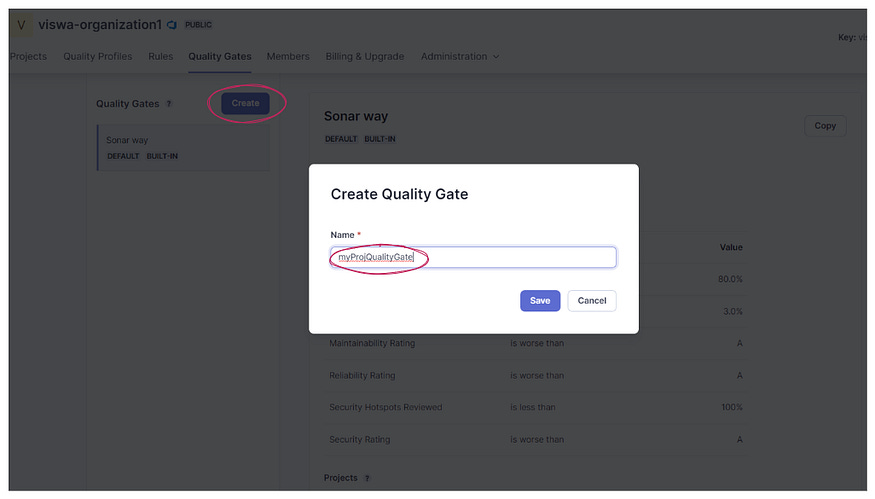
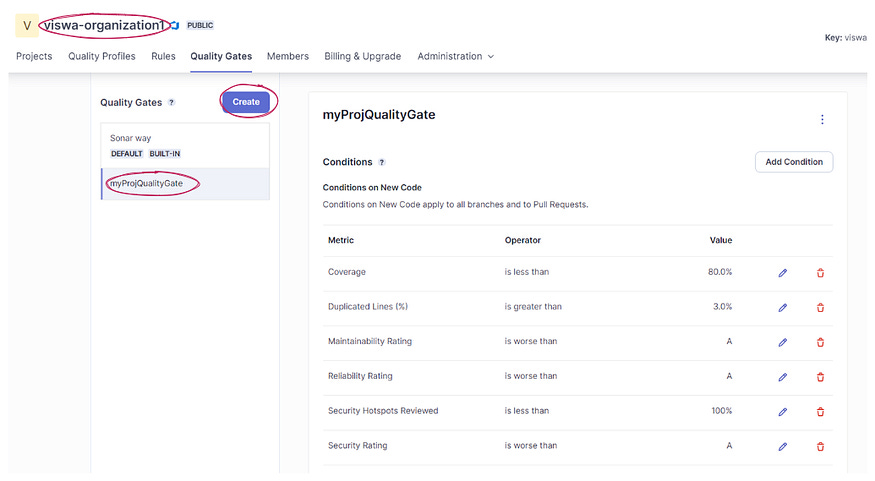
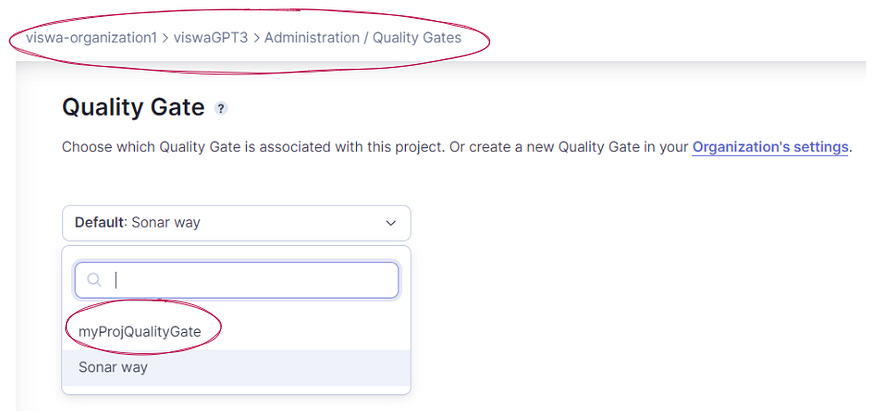
In the example above we see two quality gates defined: the built-in one, called Sonar way, and another custom-defined gate, called myProjQualityGate.
A quality gate can have conditions on new code, conditions on overall code, both, or neither (though such an empty quality gate is not particularly useful, as it will always report a status of Passed).
Claudia’s way, above, consists of six Conditions on New Code and five Conditions on Overall Code.
Conditions can be added to either section by selecting Add Condition. Adjustments can be made to conditions by selecting the edit pen, and conditions are deleted by selecting the trash can.
Conditions define failure
Quality gate conditions are always stated in terms of failure. In other words, if any condition in the quality gate (in either new or overall code) is true, then the quality gate fails.
Deciding on a quality gate
For most cases, we recommend directly using or adapting the built-in Sonar way quality gate.
The Sonar way quality gate places a minimum requirement of an A rating on Reliability, Security and Maintainability, a minimum requirement of 50% Coverage and a maximum of 3% Duplicated Lines of code. This is applied to new code only. There are no conditions on overall code.
This quality gate represents our view of the best way to implement the Clean As You Code methodology, which we strongly recommend as the best way to get the most out of SonarCloud.
Some users may wish to add, remove or adjust the conditions (including adding some on overall code) using the Sonar way as a starting point.
The Add Condition button provides a selection of possible metrics for use in quality gate conditions. Keep in mind as you define your own quality gates, that the ultimate goal is to provide useful feedback to your developers when they look at the quality gate on their project page.
Setting the quality gate for your project
Once an organization administrator has made a new quality gate available in your organization, you can select that quality gate for use in your project.
To select a quality gate for a project, you must be an administrator of that project.
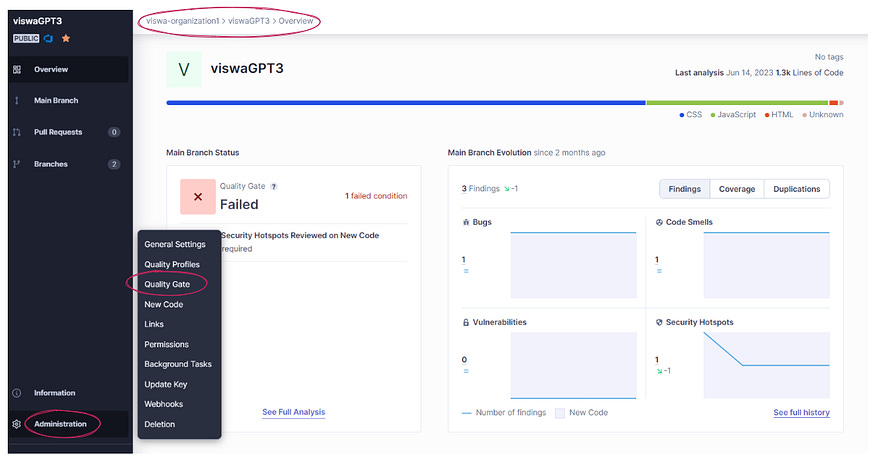
You select the quality gate that you want from the available ones listed in Your Organization > Your Project > Administration — Quality Gates: